
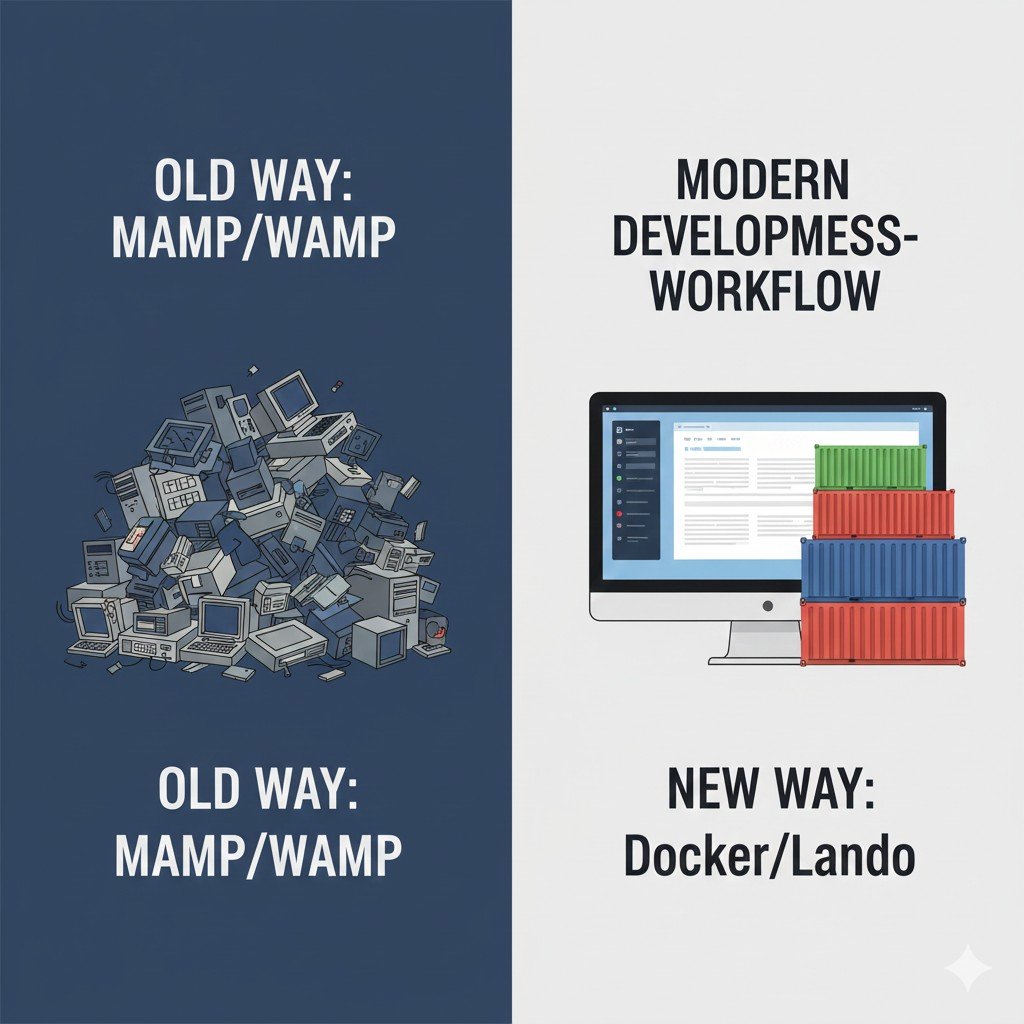
Why Containerization is the Future (MAMP/WAMP Alternative)
Containerization, led by Docker, is the key shift. Here’s why developers are moving away from traditional local servers:
- 1. Environmental Parity: Containers package your application (WordPress), its dependencies (PHP, MySQL), and its configuration into a single, isolated unit. This means your local environment exactly matches your staging and production environments, eliminating the dreaded “But it worked on my machine!” problem.
- 2. Isolation: Each project lives in its own containerized environment. You can simultaneously run Project A on PHP 8.2 and Project B on PHP 7.4 without any conflicts.
- 3. Portability: Your entire environment is defined by simple text files (like
docker-compose.ymlor a Lando configuration). You can share this file with a teammate, and they can spin up the exact same environment instantly. - 4. Speed and Efficiency: Tools like Lando and Docker are often faster and more resource-efficient than running heavyweight traditional local server software.
Option 1: The Foundation – Pure Docker for WordPress Development
Mastering Docker gives you ultimate control, but it requires the steepest learning curve.
Goal: Manually set up a lightweight environment using Docker Compose.
Setup Steps:
- Install Docker Desktop: Download and install the application for your OS (Mac, Windows, or Linux).
- Create a Project Structure: Create a folder for your new project and inside it, create a file named
docker-compose.yml. - Define Services in
docker-compose.yml: This file tells Docker which services (containers) you need and how they should communicate. For WordPress, you need at least two: a Web Server (PHP/Apache/Nginx) and a Database (MySQL/MariaDB).
version: '3.8'
services:
  # 1. The Database Service
  db:
    image: mysql:8.0
    environment:
      MYSQL_ROOT_PASSWORD: root
      MYSQL_DATABASE: wordpress_db
      MYSQL_USER: wp_user
      MYSQL_PASSWORD: wp_password
    volumes:
      - db_data:/var/lib/mysql
  # 2. The WordPress/Web Server Service
  wordpress:
    depends_on:
      - db
    image: wordpress:latest # Official WordPress Docker image
    ports:
      - "8080:80" # Map host port 8080 to container port 80
    environment:
      WORDPRESS_DB_HOST: db:3306 # Hostname is the service name (db)
      WORDPRESS_DB_NAME: wordpress_db
      WORDPRESS_DB_USER: wp_user
      WORDPRESS_DB_PASSWORD: wp_password
    volumes:
      - ./html:/var/www/html # IMPORTANT: Mount your code here
# 3. Define the volumes
volumes:
  db_data: {}
- Launch the Environment: Open your terminal in the project directory and run:
docker-compose up -d
- Access: Once running, navigate to
http://localhost:8080in your browser to complete the standard WordPress installation.
Option 2: The Developer Favorite – Lando for WordPress
Lando is a powerful wrapper around Docker, designed to simplify complex development environments. It’s often favored by agencies and developers who manage diverse projects (WordPress, Drupal, Laravel, etc.).
Goal: Get a working WordPress environment with a single command.
Setup Steps:
- Install Lando: Download and install Lando for your OS.
- Navigate to Project Folder: Create an empty folder for your project and navigate into it via your terminal.
- Initialize Lando: Tell Lando you want a WordPress environment:
lando init --recipe wordpress
Lando will ask you a few questions (e.g., project name, document root, and the recipe will automatically generate a
.lando.ymlfile). - Start the Project: Build and start all containers:
lando start
Lando will display the access URLs (e.g.,
http://myproject.lndo.site). - Install WordPress: Lando provides powerful commands for common tasks:
# Install WordPress core (if not already there)
lando composer create-project roots/wordpress myapp
# Execute WP-CLI commands inside the container
lando wp core install --url=myproject.lndo.site --title="My Site" --admin_user=admin ...
Lando’s Killer Features: lando pull (to grab files/database from your hosting provider) and lando share (to temporarily share your local site with the world).
Option 3: The User-Friendly Choice – LocalWP (Formerly Local by Flywheel)
LocalWP is the easiest way to spin up a WordPress site locally. It requires zero command-line knowledge and is the perfect starting point for beginners or developers who prioritize speed and a visual interface.
Goal: Create a new site with a few clicks.
Setup Steps:
- Download and Install: Get LocalWP from their official website and install the application.
- Click “Create a New Site”: In the LocalWP interface, click the large
+button. - Set Site Details: Give your site a name. LocalWP will create a
.localdomain for you (e.g.,mysite.local). - Select Environment: Choose your desired PHP version (e.g., 8.2), Web Server (Apache or Nginx), and MySQL version.
- Set Credentials: Set your WordPress admin username and password.
- Click “Start Site”: LocalWP handles all Docker/container setup in the background.
LocalWP’s Killer Features: Live Links (temporarily sharing your local site), Blueprint functionality (saving a site template), and one-click SSH/WP-CLI access right within the GUI.
Which Modern Tool is Right for Your Workflow?
| Feature | LocalWP | Lando | Pure Docker |
| Learning Curve | Lowest (GUI) | Medium | Highest (CLI/Config) |
| Setup Speed | Fastest (Click & Go) | Fast (Single command) | Slowest (Manual config) |
| Portability | Good (Shared site folder) | Excellent (.lando.yml file) |
Excellent (docker-compose.yml file) |
| Best For | Freelancers, Beginners, Designers | Teams, Advanced/Agency Developers, Complex setups | DevOps, Experts who need full low-level server control |
Recommendation:
- If you just need a local site and hate the command line, use LocalWP.
- If you need a flexible, powerful, and reproducible environment for complex projects or teams, choose Lando.
- If you are building custom Docker images or need to integrate deep server configurations, use Pure Docker.
By transitioning to one of these container-based solutions, you are future-proofing your local WordPress development environment, ensuring your projects are faster, more stable, and perfectly aligned with modern development practices.
Ready to upgrade your development workflow but need help with the migration?
If you’re stuck transitioning your existing MAMP/WAMP sites to a modern containerized solution or need help setting up a robust, scalable Lando or Docker configuration, contact me for expert development environment consultation and setup. Let’s build a faster, better workflow.