
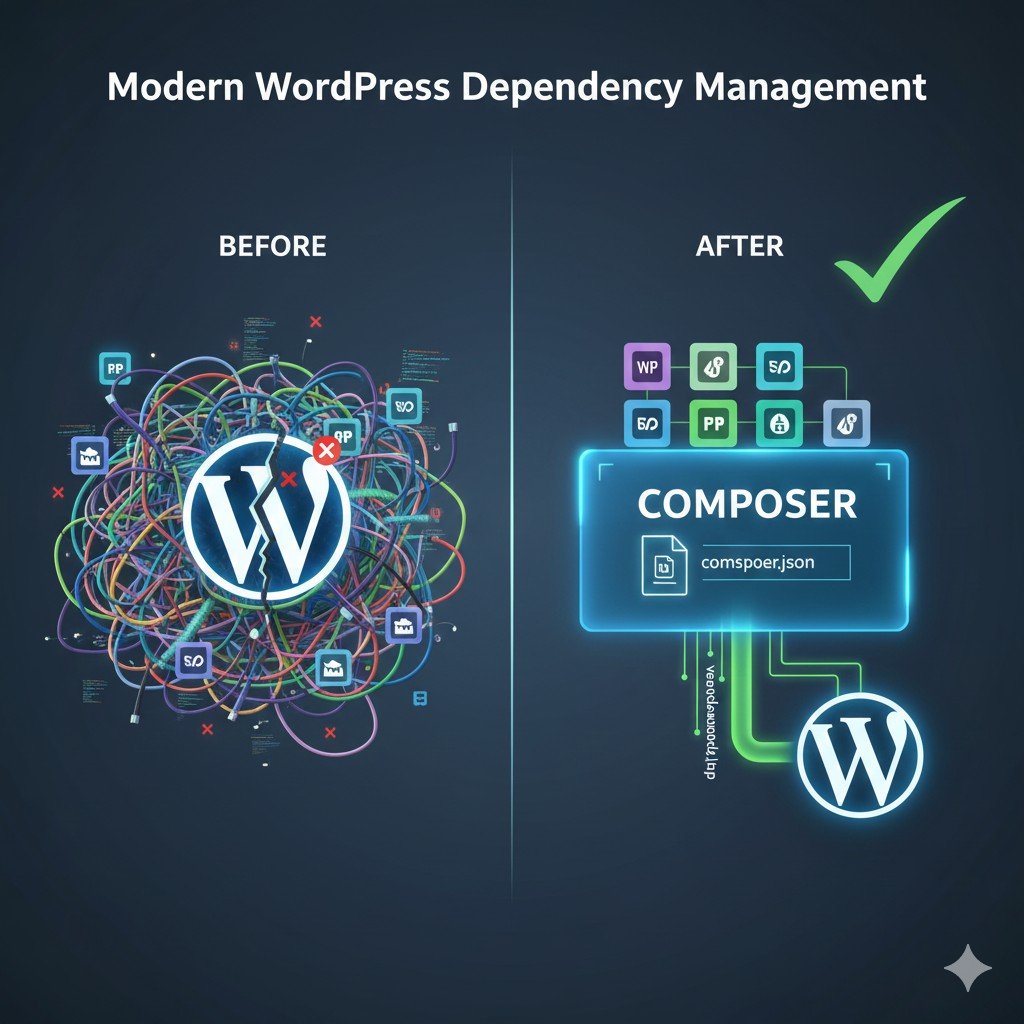
Why WordPress Developers Must Adopt Composer
Before Composer, integrating external PHP code was manual and messy, leading to these common issues:
- Dependency Hell: Manually managing complex libraries that rely on other libraries (e.g., Guzzle needs
psr/http-message, which needspsr/log, etc.). - Version Conflicts: Two plugins might rely on different versions of the same external library, causing fatal errors.
- Manual Autoloading: You had to manually write
require_oncestatements for every file, creating huge, unmanageable blocks of code. - Outdated Code: No easy way to check for or update external security patches.
Composer solves all this by:
- Resolving Dependencies: Automatically installing all required sub-libraries and ensuring compatible versions.
- Standard Autoloading: Generating a single, high-performance autoloader that handles all your namespaces.
- Easy Updates: A single command (
composer update) updates all dependencies.
Step 1: Configuring the composer.json File
The composer.json file is the manifest that defines your project’s dependencies and structure. You should place this file in the root directory of your custom plugin or theme.
Essential Structure for WordPress Plugins
A robust composer.json file for a typical WordPress plugin (e.g., one that needs to make HTTP requests using Guzzle) should look like this:
{
    "name": "your-company/your-plugin-slug",
    "description": "A plugin for handling custom integrations.",
    "type": "wordpress-plugin",
    "license": "GPL-2.0-or-later",
    "authors": [
        {
            "name": "Your Name",
            "email": "you@example.com"
        }
    ],
    "require": {
        "php": ">=7.4",
        "guzzlehttp/guzzle": "^7.0"
    },
    "autoload": {
        "psr-4": {
            "YourNamespace\\PluginName\\": "src/"
        }
    },
    "config": {
        "optimize-autoloader": true
    },
    "minimum-stability": "dev",
    "prefer-stable": true
}
Key Sections Explained:
require: Lists the external packages (libraries) your plugin needs.guzzlehttp/guzzle: ^7.0means you need Guzzle version 7.0 or higher, but no higher than 8.0 (standard semantic versioning).autoload: CRITICAL! This section tells Composer how to load your own custom code. We use PSR-4 standard mapping:- It says: “Any class in the namespace
YourNamespace\PluginName\can be found in the localsrc/directory.”
- It says: “Any class in the namespace
config: Helps optimize Composer’s generated autoloader file.
Step 2: Installing and Generating the Autoloader
Once composer.json is ready, navigate to your plugin’s root directory in the terminal and run:
composer install
This command does three vital things:
- Downloads Dependencies: It creates a
vendor/directory and downloads Guzzle (and all its dependencies) into it. - Creates
composer.lock: This file locks the exact versions of all installed packages, ensuring every developer on your team uses the identical versions. - Generates
autoload.php: This single file is your gateway to accessing all external libraries and your own custom classes.
The Role of the vendor Folder in WordPress
The vendor folder contains all your external dependencies and the generated autoload.php file.
Best Practice: The vendor folder must be committed to your version control (Git) inside your plugin/theme directory. You should not rely on Composer being run on the production server.
Step 3: Integrating the Autoloader into Your WordPress Code (The Right Way)
This is the most crucial step for WordPress developers. You only need to include one line of code to access every single class in your project, external or custom.
In your main plugin file (e.g., my-plugin.php), add the following near the top, after the header comments:
// If Composer dependencies haven't been loaded by another source, load them now.
if ( file_exists( __DIR__ . '/vendor/autoload.php' ) ) {
    require_once __DIR__ . '/vendor/autoload.php';
}
Developer Insight: Once this line executes, every single class (like GuzzleHttp\Client or your custom YourNamespace\PluginName\MyCustomClass) becomes instantly available via PHP’s autoloader. You no longer need require_once statements for individual classes!
Step 4: Using Namespaced Classes and Dependencies
Now you can safely use the libraries defined in your composer.json and your own custom code.
Example: Using a Custom Class
If you have a file src/Database/Manager.php containing class Manager, and its namespace is YourNamespace\PluginName\Database, you can instantiate it anywhere in your plugin like this:
use YourNamespace\PluginName\Database\Manager;
$db_manager = new Manager();
Example: Using an External Library (Guzzle)
use GuzzleHttp\Client;
function fetch_external_api_data() {
    $client = new Client(['base_uri' => 'https://api.example.com/']);
    try {
        $response = $client->request('GET', '/data');
        return json_decode( $response->getBody()->getContents() );
    } catch ( \GuzzleHttp\Exception\ClientException $e ) {
        // Handle API errors gracefully
        return false;
    }
}
Composer Best Practices for the WordPress Developer
- Isolation is Key: NEVER install dependencies in the root
/wp-content/or the root of the WordPress installation. Always keep thecomposer.json,composer.lock, andvendorfolder inside your specific plugin or theme directory for isolation. - Autoload Your Own Code: Use the
autoloadsection to structure your project with PSR-4 standards (placing class files in asrc/directory). This is cleaner than throwing all PHP files into the plugin root. - Use Private Repositories: For custom internal libraries, look into using Composer’s
repositoriesblock to link to private Git repositories (via SSH or token). - Use WP-CLI: Tools like WP-CLI are often installed via Composer, demonstrating the value of this environment tool.
Conclusion: Move from Legacy to Modern PHP Development
Integrating Composer is the single most effective way to modernize your WordPress workflow, ensuring your code is clean, manageable, and free from dependency conflicts. It separates your custom application logic from your external dependencies, giving you the power to use any PHP library the modern web demands. Stop wasting time on manual require_once statements and version conflicts. Start writing clean, namespaced, Composer-managed code.
Ready to clean up your WordPress projects and implement a modern workflow?
If you need help restructuring your existing WordPress plugins or themes to correctly utilize Composer and PSR-4 standards, contact me for expert development consultation and code refactoring services. Let’s build a foundation for scalable code.